Persistent Memory for Codex and ChatGPT Work
The GoodMem plugin for ChatGPT Work and Codex searches and saves to your GoodMem Cloud instance, which Claude Code and other agents can also reach.
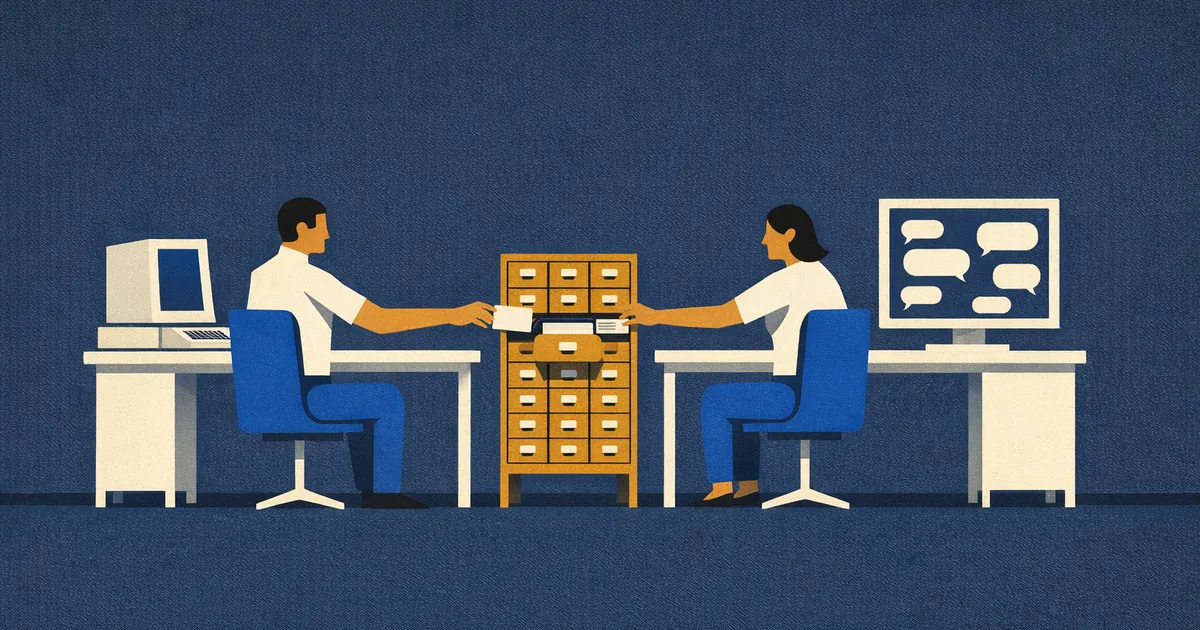
GoodMem is listed in OpenAI’s plugin directory [1]. The plugin connects ChatGPT Work and Codex through the same gateway to the same GoodMem Cloud instance, so whatever one of them saves the other can find. It is a package of skills, instructions that tell the model when to search memory, when to save, and how to use the GoodMem SDKs, together with the connection to our gateway. In Codex you can also install it from our GitHub repository [2]. This post covers what the plugin does, how it is built, some ways to use it, and how to set it up.
Why a memory layer
Files uploaded to a conversation count against the model’s context window, and the next conversation starts without them. GoodMem keeps that material outside the conversation. When you ask a question in ChatGPT Work or Codex and your stored material could plausibly answer it, the plugin’s instructions tell the model to search it without being asked. The plugin retrieves the passages most relevant to the question and passes them to the model, which writes the answer from them, so for each question the model reads the parts of your documents that bear on it rather than all of them. Saving works the other way: the model writes to memory only when you ask it to.
The same GoodMem instance is also reachable from Claude Code through our Claude Code plugin [3], from MCP clients through GoodMem’s MCP server [4], from frameworks such as LangChain, LlamaIndex, LangGraph, Google ADK, CrewAI, and Spring AI [5], and from SDKs in Python, TypeScript, Java, Go, and .NET [6]. Documents and memories saved from one of these tools are available to the others, so there is no vendor lock-in at the memory layer.
The pieces the plugin works with:
- Memories. A memory is one unit of content with metadata attached. It can be a document, such as a PDF or a Word file, or a paragraph of text: a decision, an answer, a note. GoodMem splits each memory into chunks and embeds them, and search runs over the chunks.
- Spaces. Memories live in spaces. The model can search one space, or several in a single call when a question spans projects or document collections. Spaces are also the unit of access control, as the research example below describes.
- Formats. GoodMem extracts text from PDF; Microsoft Word (.doc and .docx), PowerPoint (.ppt and .pptx), and Excel (.xlsx); RTF; the OpenDocument text, spreadsheet, and presentation formats; and plain text, Markdown, HTML, CSV, JSON, and XML. Images and scanned pages without a text layer need GoodMem’s separate OCR service first [7].
- Files from the conversation. Attach a PDF or an Office file in ChatGPT Work and ask the model to save it, and the plugin uploads the original file, up to 50 MiB by default, rather than a transcription of it. Larger files, and many files at once, go in through the GoodMem console, CLI, or SDKs, into the same spaces.
- Saving what the conversation produced. When you ask, the model saves a finding, an answer, a question together with its answer, or a document it generated, so the work done in a conversation ends up in the same store as the sources it came from.
- Metadata filters. A memory can carry metadata such as date, project, department, document type, or any other field you define, and searches can filter on it [8].
- Your own models. You choose the embedders, rerankers, and LLMs in the retrieval pipeline, from a hosted provider or from a server you run.
- Page images. For .pdf, .docx, .pptx, and .xlsx files, GoodMem can also render each page, slide, or worksheet to an image and keep it with the memory, linked to the chunks that came from it. The plugin can ask for page images on upload and list them, but retrieval hands the model text, not the images [9].
- Across sessions. A new memory is searchable once GoodMem has processed it, from a later session or from any other client connected to the instance.
Ways to use it
A research library
If your papers are in a GoodMem space, loaded through the console or with the CLI, a question in ChatGPT Work or Codex is answered from the passages that match it, and the papers do not have to be uploaded to the conversation.
You can also ask the model to save a conclusion from the conversation (“save that conclusion to my papers space, with the evidence for it and the question it answers”). A later session in either product finds it alongside the papers.
A single space works. The reason to use several is access control, because GoodMem grants roles per space. A viewer can search and read, a contributor can also add memories, a content manager can also delete them, and a space admin can also change the space and share it [10]. Search checks those rights per space and does not filter results memory by memory, so access to search results is controlled per space [11]. A lab that shares its published papers with collaborators but keeps unpublished results to itself puts the two in separate spaces, and a member of the lab can search both in one call.
A company knowledge base
Company knowledge sits in policies, product documentation, onboarding guides, meeting notes, decision records, and internal reports. A company can put all of this in one GoodMem instance, with a space for each body of knowledge: human-resources policy, engineering documentation, each customer project, operational runbooks. An employee asks ChatGPT Work “what is the approved process for requesting production access?”, and the plugin searches the spaces that employee can read and passes what it finds to the model.
Because roles are granted per space, the company can give everyone viewer access to the policy space, give the people who maintain it contributor or content-manager access, and keep a customer’s project space visible only to the people on that account. Employees with viewer access can search and read the policy space but cannot change or remove anything in it.
Coding work that moves between ChatGPT Work and Codex
A feature may be planned in ChatGPT Work, built in Codex, and brought back to ChatGPT Work for documentation or review, with each step saving to and reading from the same spaces. For example, you define an authentication feature in ChatGPT Work and save the approved requirements. You ask Codex to retrieve them before it writes the code. When the implementation is done, you ask Codex to save the architectural decisions and known limitations for whoever works on it next, which a later session in Codex, ChatGPT Work, or Claude Code can find.
How we built it
GoodMem is a memory layer for agents: a server that ingests documents, embeds and indexes them, and returns permission-checked context to whichever model asks for it. Its data lives in PostgreSQL with the pgvector extension, including the original files, extracted text, chunks, vectors, page images, and access-control records, so ordinary PostgreSQL backups capture all of it. It runs on GoodMem Cloud or on a server you operate, from a laptop to your own data center, and under an enterprise agreement in a network with no outbound access [12]. The plugin described here connects to GoodMem Cloud.
GoodMem has many settings: which embedder, which reranker, which LLM, how documents are chunked. In GoodMem Cloud the Retrieval Optimizer chooses among embedders and rerankers by testing them against your own queries [13]. We did not want a plugin user to face any of those choices, so Quick Start sets up a working configuration from one provider key.
The plugin talks to GoodMem through a gateway we built. The gateway signs the
user in through GoodMem Cloud, creates an API key for the chosen instance under
that user’s authority, and carries traffic between ChatGPT Work or Codex and
the instance, so the plugin acts with the user’s own permissions in GoodMem.
GoodMem’s REST API has 80 operations in its OpenAPI specification. The gateway
exposes 20 tools: listing, reading, creating, and updating spaces; saving text
and uploading files; retrieving, listing, reading, and deleting memories, and
listing their page images; listing models and sending setup links; a connection
check and a user lookup; and the search and fetch tools that ChatGPT
expects.
Setting it up
1. Create a GoodMem Cloud account
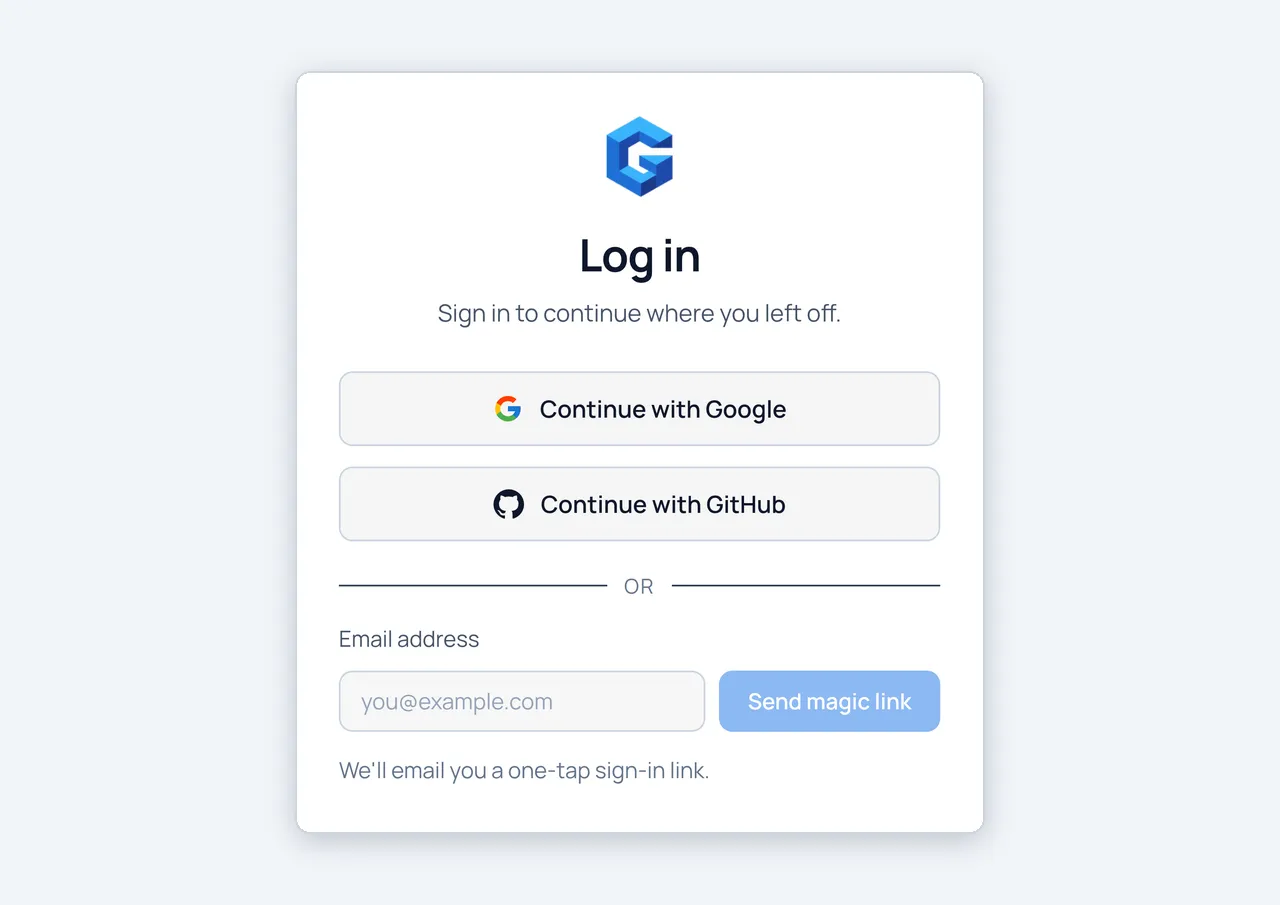
Go to GoodMem Cloud and sign in with Google or GitHub, or enter an email address to be sent a one-time sign-in link.
2. Create a GoodMem instance
After signing in, create the instance you want ChatGPT Work or Codex to connect to.

3. Install the plugin
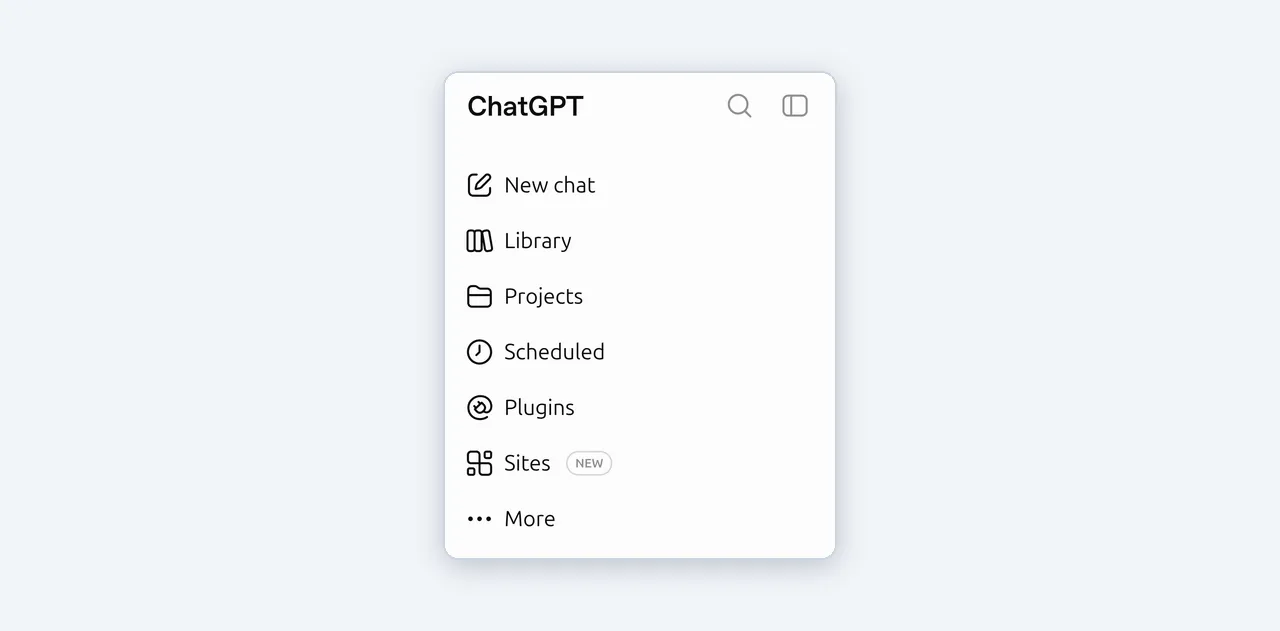
In ChatGPT Work, open GoodMem’s directory listing directly, or select Plugins in the sidebar on the left.
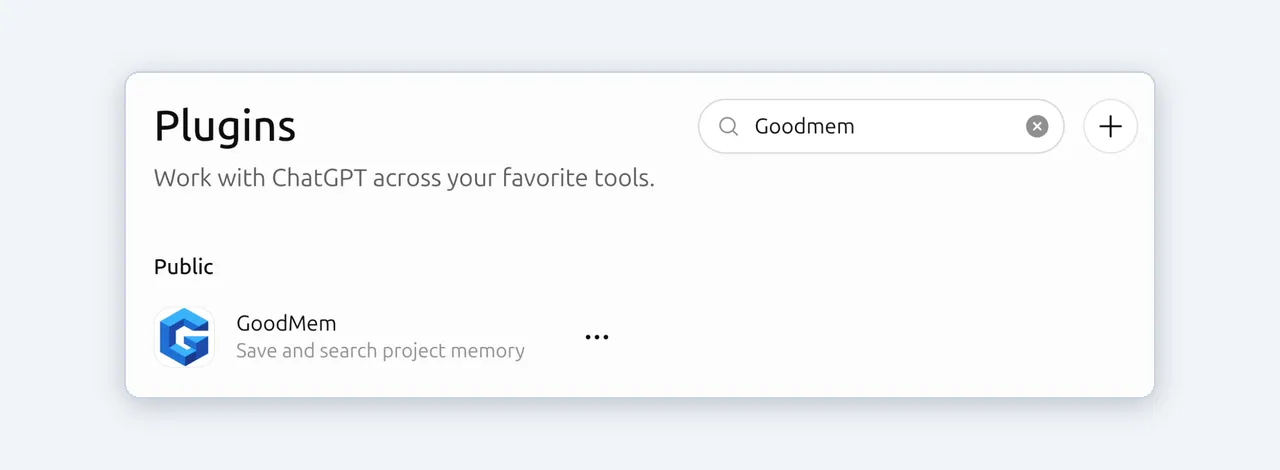
Search for GoodMem in the Plugins directory.
Open GoodMem’s page, install it, and sign in with your GoodMem Cloud account. Then select the GoodMem team and instance the plugin should connect to.
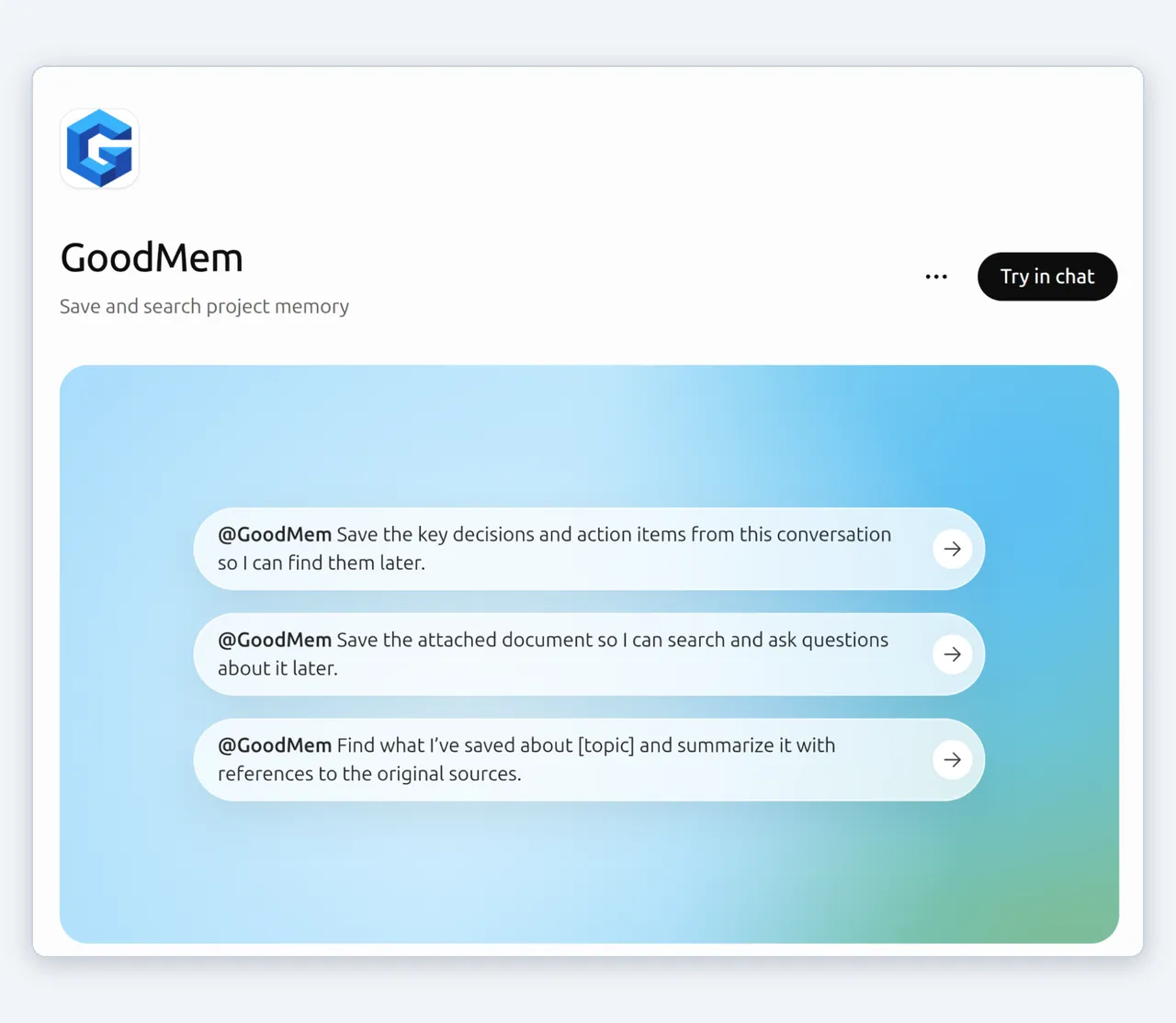
In Codex, add our repository as a plugin marketplace, install the plugin from it, and sign in:
codex plugin marketplace add PAIR-Systems-Inc/goodmem-openai-plugin
codex plugin add goodmem@goodmem
codex mcp login goodmem
The last command prints a sign-in link for your GoodMem Cloud account, where you select the team and instance.
For a self-hosted GoodMem server there is a separate Codex plugin, which runs GoodMem’s MCP server on your machine and takes your server’s URL and an API key [14].
4. Configure your models
In a ChatGPT Work or Codex conversation, ask the model to start the GoodMem Quick Start. The plugin replies with a setup link that works once and expires after 30 minutes. Open it and paste an API key from a model provider: OpenAI, OpenRouter, Google Gemini, Jina AI, Cohere, Voyage AI, or Alibaba DashScope. This is the provider’s key, not your GoodMem API key, and it goes into the GoodMem console, not the chat. Quick Start creates an embedder, plus whichever chat model and reranker that provider offers, and tests them. If you skip this step, the plugin sends the same kind of link the first time you ask it to save something.
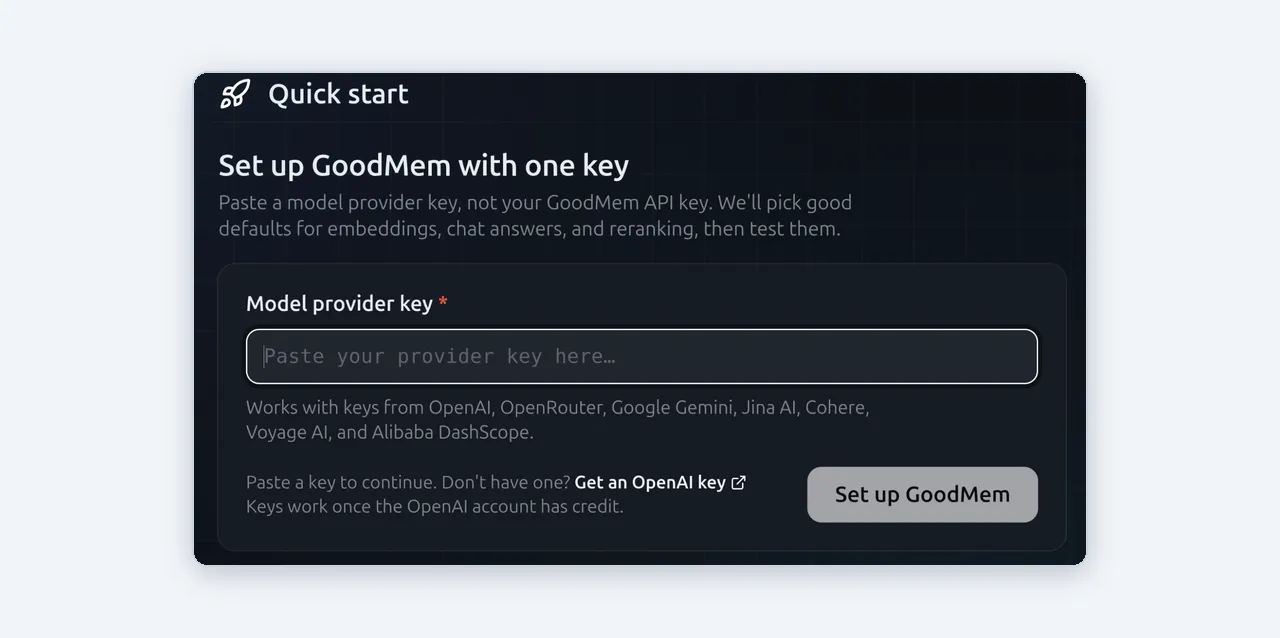
To configure one component at a time, ask the model for only an embedder, a reranker, or an LLM. The plugin sends a setup link for that component in the same way.
References
- GoodMem in the ChatGPT plugin directory. https://chatgpt.com/plugins/plugin_asdk_app_6aaae3ab7b1081918c3bb0921689fe15
- GoodMem plugin for Codex and ChatGPT Work: source and install instructions. https://github.com/PAIR-Systems-Inc/goodmem-openai-plugin
- Claude Code plugin. GoodMem documentation. https://docs.goodmem.ai/docs/integrations/coding-agents/claude-code-plugin
- MCP server reference. GoodMem documentation. https://docs.goodmem.ai/docs/reference/mcp/
- Integrations. GoodMem documentation. https://docs.goodmem.ai/docs/integrations/
- SDK reference. GoodMem documentation. https://docs.goodmem.ai/docs/reference/sdk/
- OCR quickstart. GoodMem documentation. https://docs.goodmem.ai/docs/how-to/ocr-quickstart/
- Filter expressions reference. GoodMem documentation. https://docs.goodmem.ai/docs/reference/filter-expressions/
- Work with document page images. GoodMem documentation. https://docs.goodmem.ai/docs/how-to/work-with-page-images/
- Built-in roles. GoodMem documentation. https://docs.goodmem.ai/docs/reference/security/built-in-roles/
- Share a space. GoodMem documentation. https://docs.goodmem.ai/docs/how-to/access-control/share-a-space/
- Deployment and self-hosting. GoodMem FAQ. https://goodmem.ai/resources/faq
- GoodMem Cloud and the Retrieval Optimizer. https://goodmem.ai/cloud
- Codex plugin for self-hosted GoodMem. GoodMem documentation. https://docs.goodmem.ai/docs/integrations/coding-agents/codex/